
A website usually contains pages for company information, contact forms, landing pages and terms and conditions.
Add a page
- Go to
Pages, found in the left-hand side menu, and chooseCreate a page. - Add a title to the page and hit
Save. - You can now start to add the content or change the editor style.
It is always best to change the editor before adding content, as information can be lost when changing the editor.
Page editing
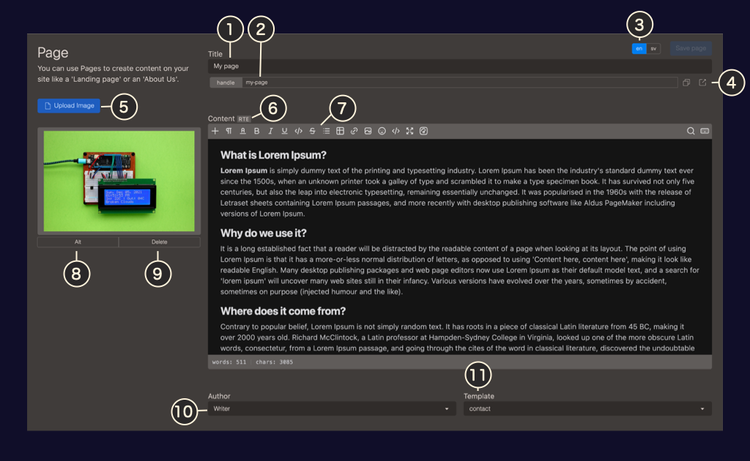
- Title Internal title for page
- Handle Editable handle for the page, this is used in the URL
- Language switcher
- Open page in browser View/preview button. If the page is unpublished a preview is shown.
- Upload image Upload an image for the page, can be used in the meta data and theme
- Editor switcher Body content editor switcher with three options: RTE, Markdown and HTML.
- Editor toolbar Toolbar for editor
- Alt-text Alt-text for the uploaded image
- Delete image Remove uploaded image
- Author picker Pick author from created authors
- Template picker Choose theme template
Authors are added under /Blogs/List authors, read more in Author guide.
Templates
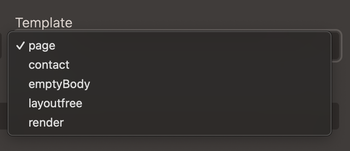
All themes can have optional templates for pages. Typically contact page template and landing page templates are options on pages.
Tags
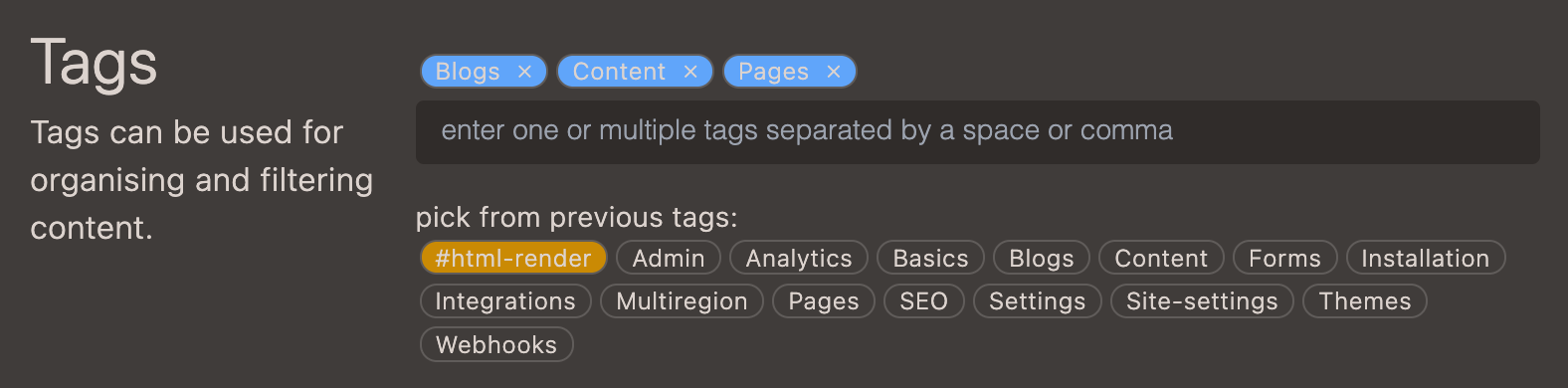
Tags can be used for internal purposes, theme logic or to be displayed on website.
Meta fields
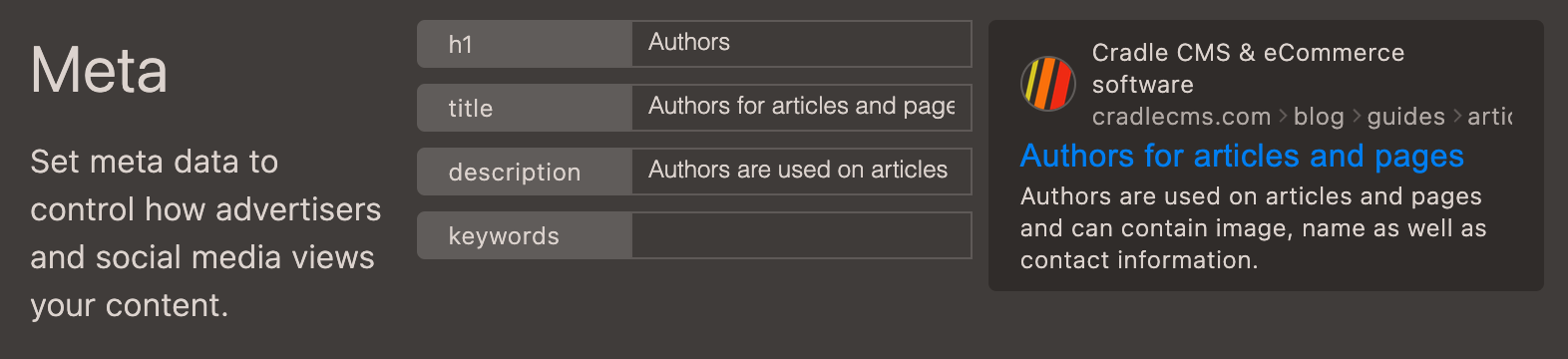
Meta fields for SEO and h1 heading
Visibility

Publish, unpublish or set publish date.
Translations
Translations are done in the page view by pressing the langugage code in the top.
URL structure
The default URL structure for a page will contain a /page/ slug and the handle. This can be modified in Routes.