
The themes define the overall look and structure of the website and the theme settings let you set colors, fonts, and add content such as images and text.
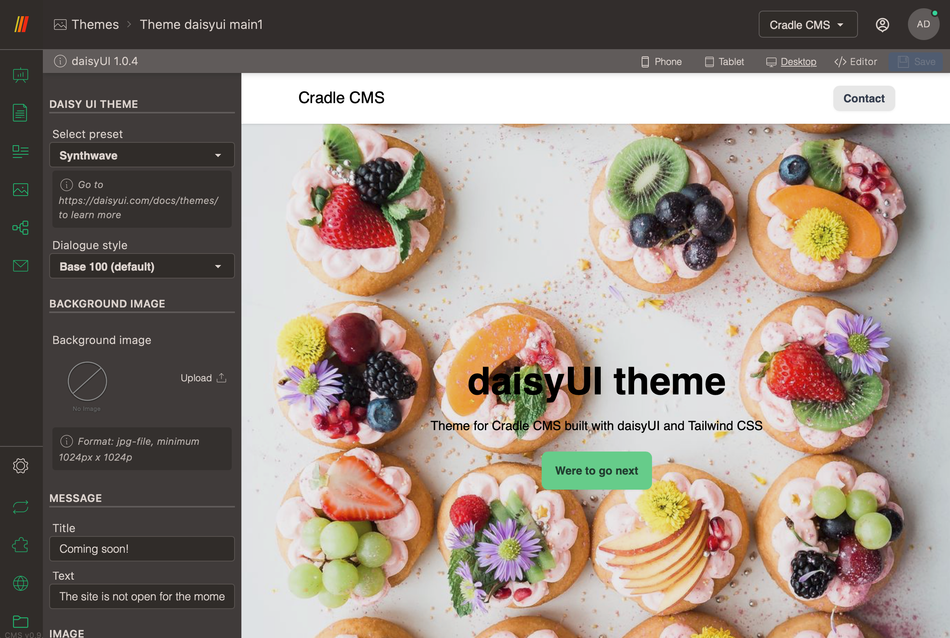
All themes have different settings but commonly the theme settings will allow to add content and settings such as:
- Header and footer, navigation and options.
- Index page content.
- Restricted page for a closed site content.
- Color settings.
For specific settings see guides on default CMS theme or eCommerce theme
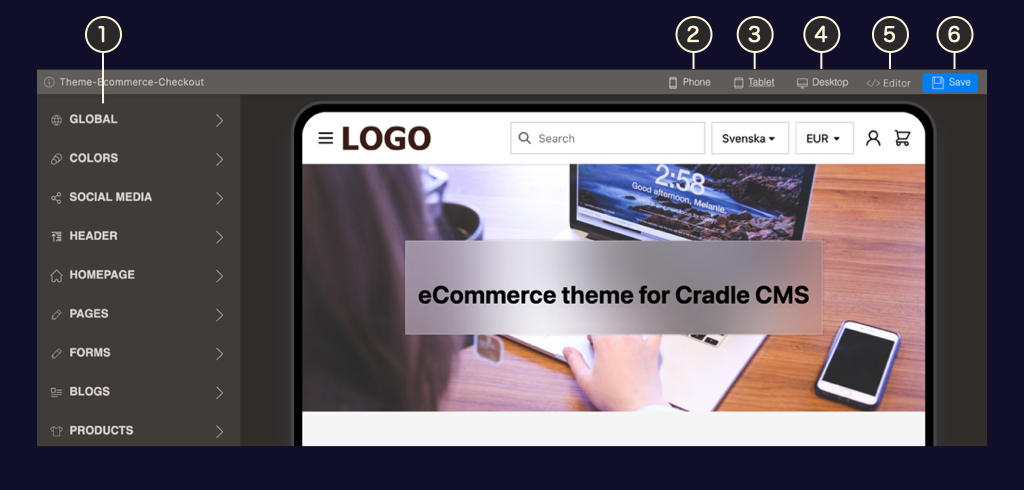
- Settings Theme setting sections
- Phone view Display preview in phone size
- Tablet preview Display preview in tablet size
- Desktop preview Display preview in fullwith
- Save Save theme settings
Themes in admin
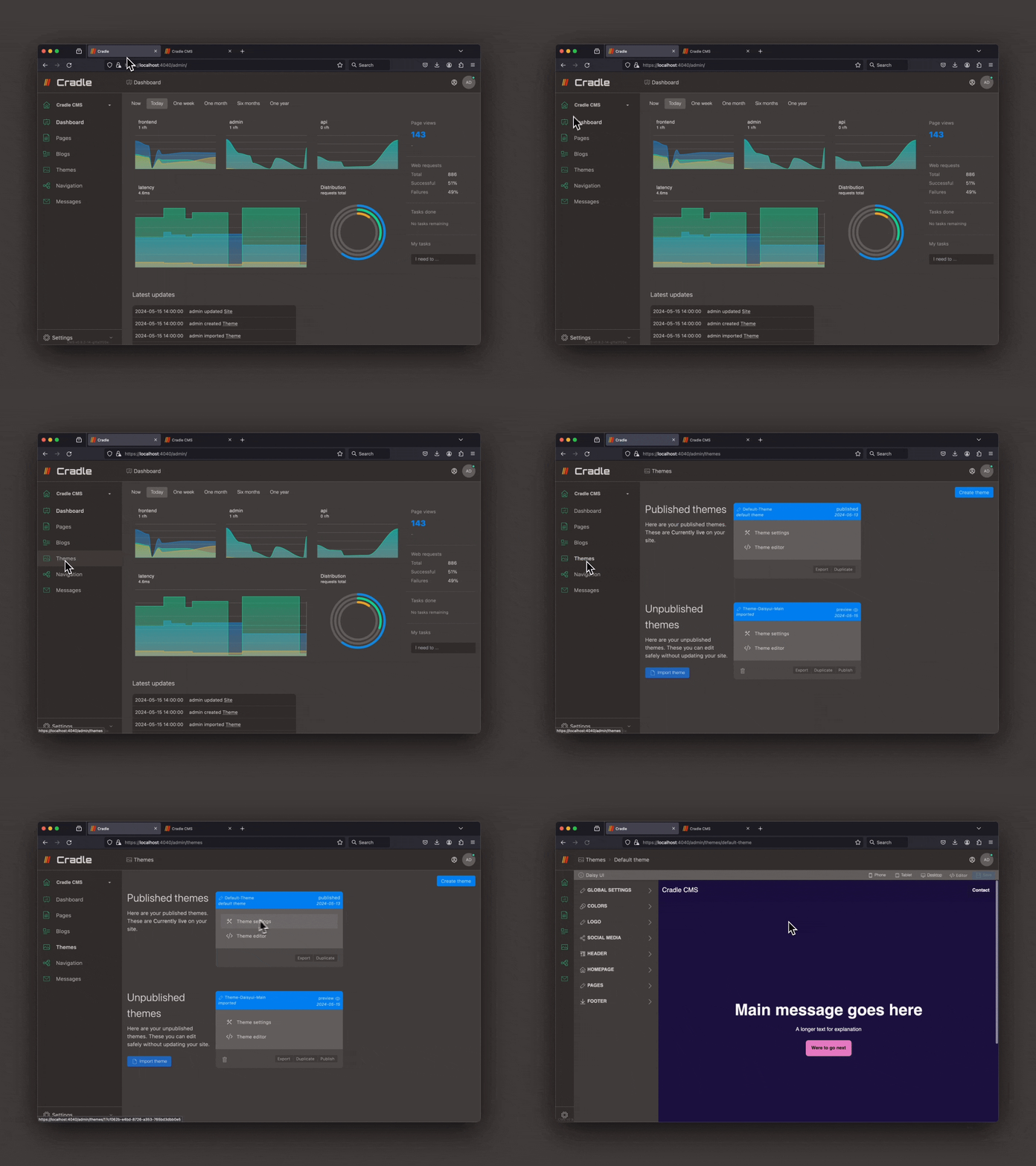
Themes are located in the left-side menu. In the Themes view published and unpublished themes are listed.
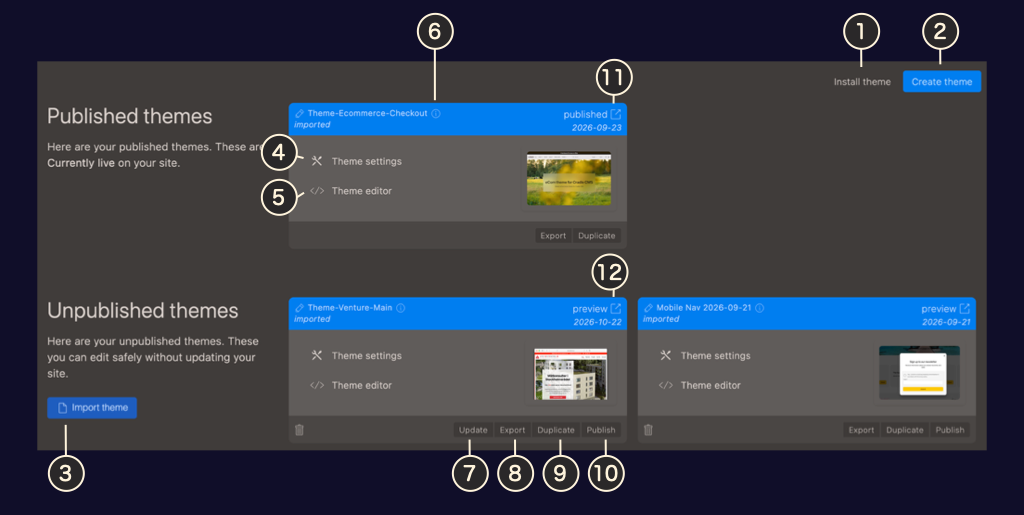
The themes view in admin displays the themes containing code that builds the site or the shop. It is possible to have multiple themes uploaded at the same time, but only one can be published. Themes can be duplicated, exported, imported and deleted.
- Install theme Installs a theme from any URL pointing at a zip-file containing a valid theme structure
- Create theme Adds a copy of the default theme
- Upload theme Imports a theme by file upload
- Theme settings Enter theme settings for theme
- Theme editor Opens theme code editor
- Theme information Displays information about the theme
- Update Update function for themes, updates the theme from url
- Export Exports the theme as a
zipfile - Duplicate Makes a copy of the theme
- Publish Publishes the theme
- View site Opens the site in a new tab
- Preview theme Opens the site with a preview of the theme
Update theme
A theme can be updated to the latest version if the theme has a link to a accessible theme. The update function keeps all the files in the media catalog, theme settings as well as added files but replaces all other files.
Steps in video
Duplicatethe active theme- Press
Updateon the theme which was just created. - Check the updated theme by viewing it in the theme settings preview or open in the browser.
Publishthe theme.
Why is there no update button on my un-published theme?
Adding themes
You can find themes at our Cradle CMS Github.
Themes can be added by uploading a zip-file or by installing from an URL.
Upload theme
With the upload button you can import a theme in the format as a zip file.
Install from URL
It is possible to add a theme by using an URL to a zip file or a github repository.
Modifying theme settings file
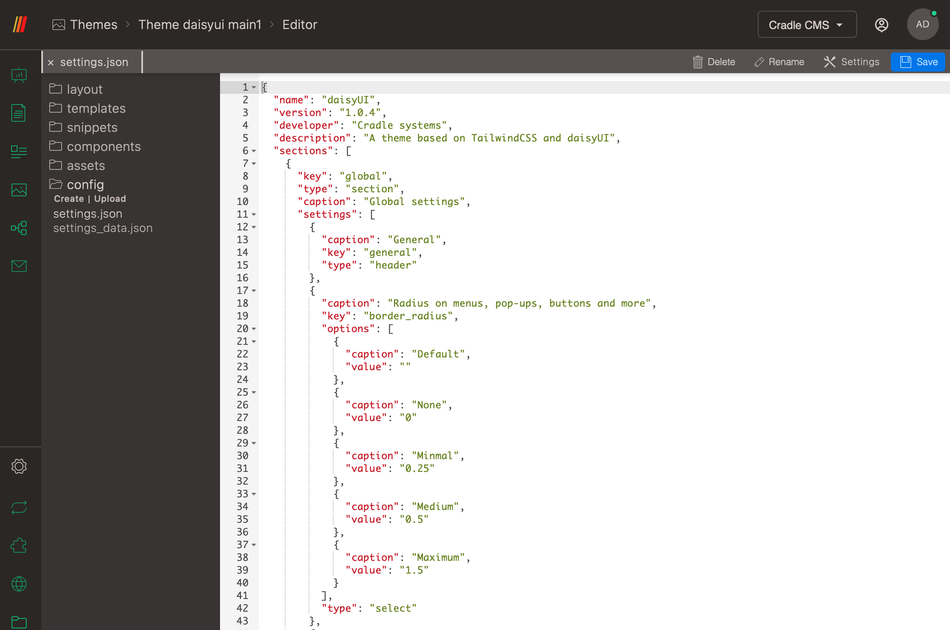
config.json file.
All themes have open code access and can be modified in the code editor built in to Cradle CMS & eCommerce. In the Theme editor the file settings.json in folder config contains all the information to build the theme settings view, more on the possibilities.