
To edit pages, blogs, and articles, you can use an HTML editor as one of the three options. This is especially useful when building landing pages or adding custom elements and interactivity to your content.
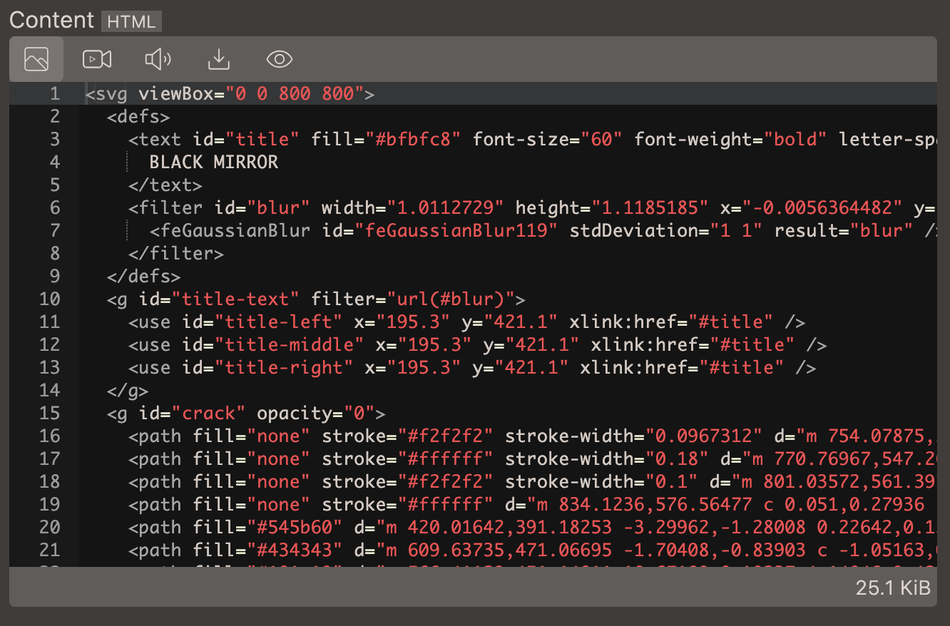
The toolbar contains buttons to upload media, video and audio, as well as, import media from link and preview.
| Button | Description |
|---|---|
| Upload media | Upload images |
| Upload video | Upload video file, .mp4 format |
| Upload audio | Upload audio file |
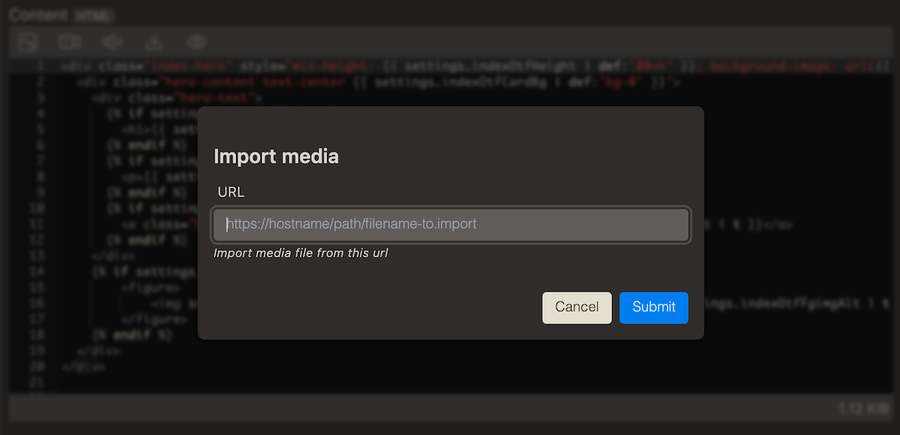
| Import media | Use an URL to import media |
| Preview | Preview the content in the editor window |
Upload Video
The toolbar contains a button for uploading videos, this will add the video with <video> tags.
<video controls>
		<source src="<path to file>" type="video/mp4">
		Your browser does not support the video tag
</video>
Tools for video editing and creation: Open broadcaster software - video recording, OpenShot - video editing and Blender - 3D Creation Suite and about the video HTML element on mdn
Extended video snippet
Video in <figure> object with schema.org syntax for videoObject and cover image.
<figure itemscope itemprop="VideoObject" itemtype="https://schema.org/VideoObject">
    <meta itemprop="contentUrl" content="<path to video file>" />
    <meta itemprop="thumbnailUrl" content="<path to cover image file>" />
    <video preload="none" controls itemprop="thumbnailUrl" poster="<path to cover image file>">
    <source src="<path to video file>" type="video/mp4">
    Your browser does not support the video tag
    </video>
    <figcaption itemprop="description">Figure caption text</figcaption>
</figure>
Video section with overlay
How to add a section with a video and text overlay with the markup editor.
Steps in video
- Changing to the markup editor on a page.
- Uploading a video through the toolbar.
- Publishing the page and viewing it in a separate window.
- Modifying and adding the correct markup.
- Adding the CSS
- Using the browser inspector
- Adding markup and CSS for the overlay text content
<div class="video-container">
    <video autoplay loop muted>
        <source src="<file path>" type="video/mp4">
        Your browser does not support the video tag
    </video>
    <div class='video-content'>
      <h1>Overlay content</h1>
      <p>Video by Taryn Elliot found on Pexels</p>
    </div>
</div>
<style>
.video-container {
  position: relative;
  width: 64rem;
  height: 400px;
  max-width: 100%;
  overflow: hidden;
  display: flex;
  place-content: center;
}
.video-container video {
  position: absolute;
  width: auto;
  height: auto;
  min-width: 100%;
  min-height: 100%;
  top: 50%;
  left: 50%;
  transform: translate(-50%,-50%);
  object-fit:cover;
}
.video-content {
  background-color: rgba(255,255,255,0.8);
  padding: 2rem;
  padding-top: 3rem;
  border-radius: 5px;
  z-index:10;
  margin: auto;
}
.video-content h1,
.video-content p {
    margin: 0;
}
</style>
Import media
Preview
The preview button in the toolbar shows the rendered HTML code in the editor.
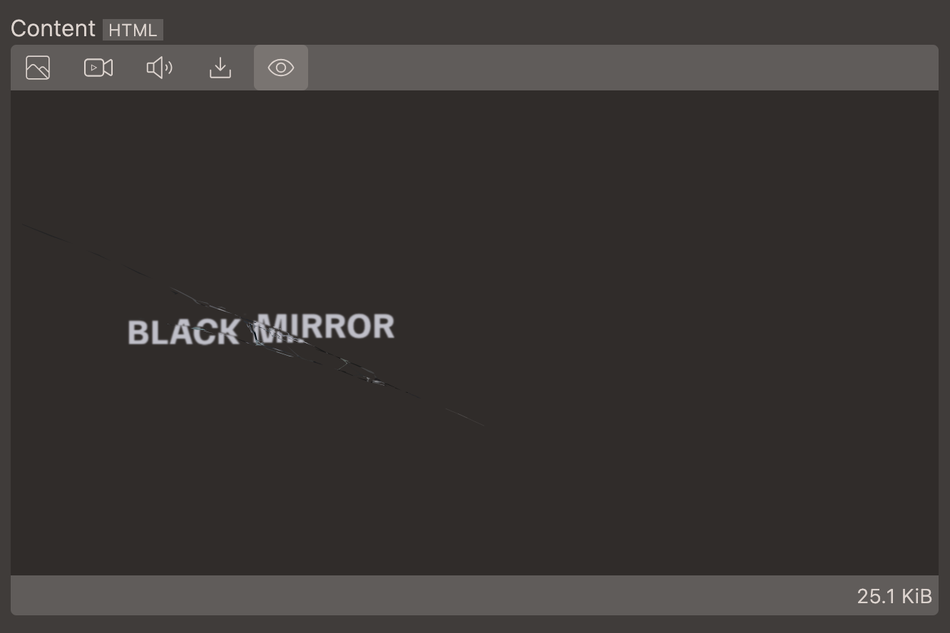
Note that it is also possible to preview the whole page, article or product in the browser.