
The Rich Text Editor (RTE) is the default content editor but is easily switch to the Markdown or HTML editor.
- Keyboard shortcuts
The editor has keyboard shortcuts for mouse-free content creation. - Dragable blocks
Rearrange block order. - Table support
Create tables from menu. - Layout support
Add in multi-column layouts. - Code access
View and edit the HTML code. - Fullpage mode
Expand the editor to the full view in admin. - Light/Dark mode
Use editor in Light or Dark mode with user setting.
A Rich Text Editor (RTE) allows users to create and edit formatted text and content in a user-friendly interface, similar to word processors, without requiring knowledge of HTML or other coding languages.
The editor in Cradle CMS has a block structure and each block can be moved up and down to change the order.
Supported blocks
| Block | Description |
|---|---|
| Text | A paragraph for text, <p> |
| Headings | <h1> to <h4> |
| Images | Image block with resizing functionality and possibility to add links and figure caption. |
| Todo | Creates a todo list |
| List | Ordered and unordered lists |
| Embed | For embedding code such as for a Youtube video |
| Table | Table with head row |
| Quote | Blockquote with attribution |
| Code snippet | For displaying a code block on a website in <pre> tags |
| Line | A horisontal line, <hr> |
| Layout | For embedding code such as for a Youtube video |
| Wrapper | Creates a wrapper, <div>, for content. |
Toolbar functionality
The toolbar contains buttons for insertion and modification of content, as well as code access, turning on the full-screen mode, and the reference for the keyboard shortcuts.
Content blocks
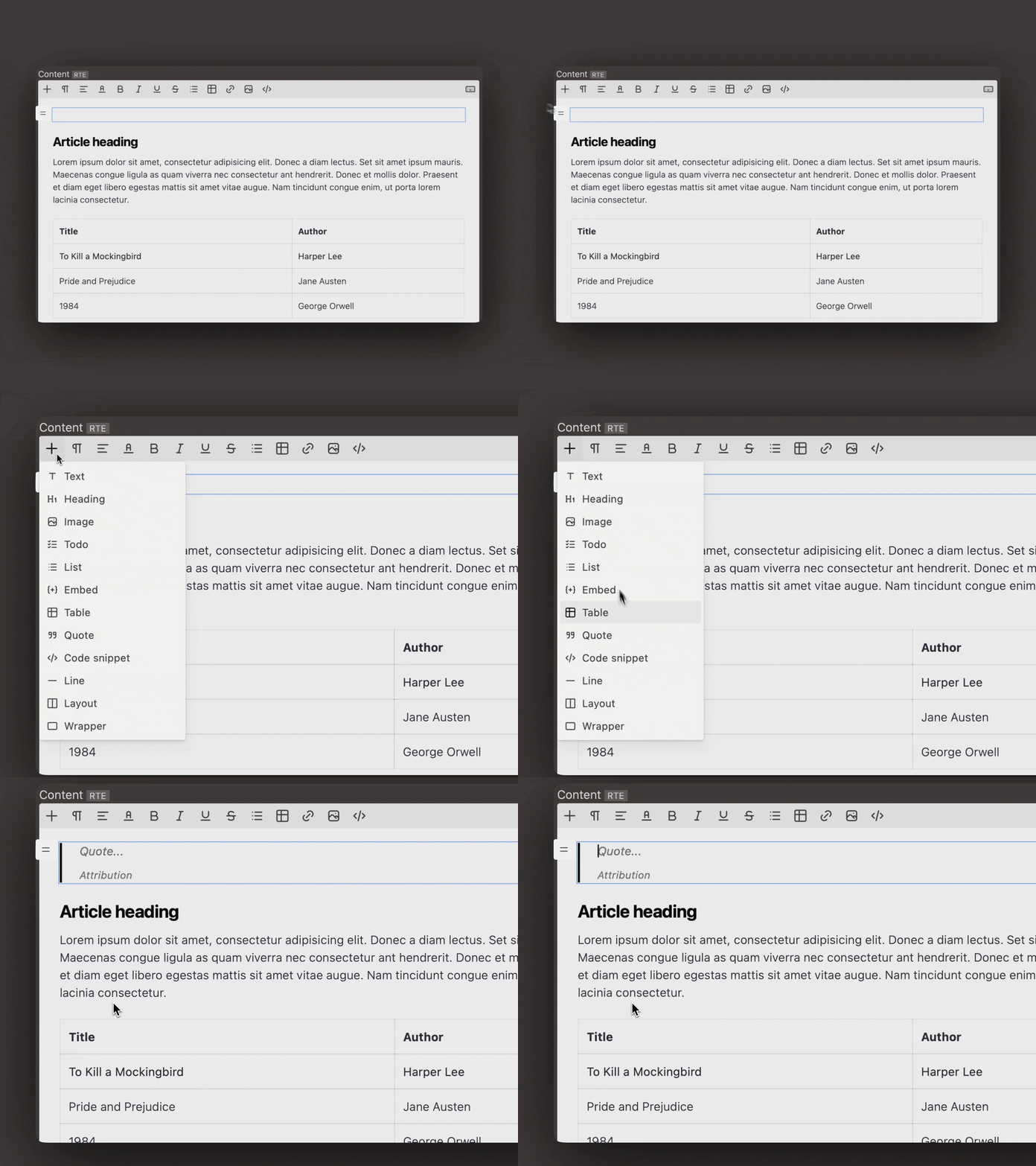
A block is added by pressing the plus sign in the menu and simply hitting enter which creates the default text-block (a <p> element ) .
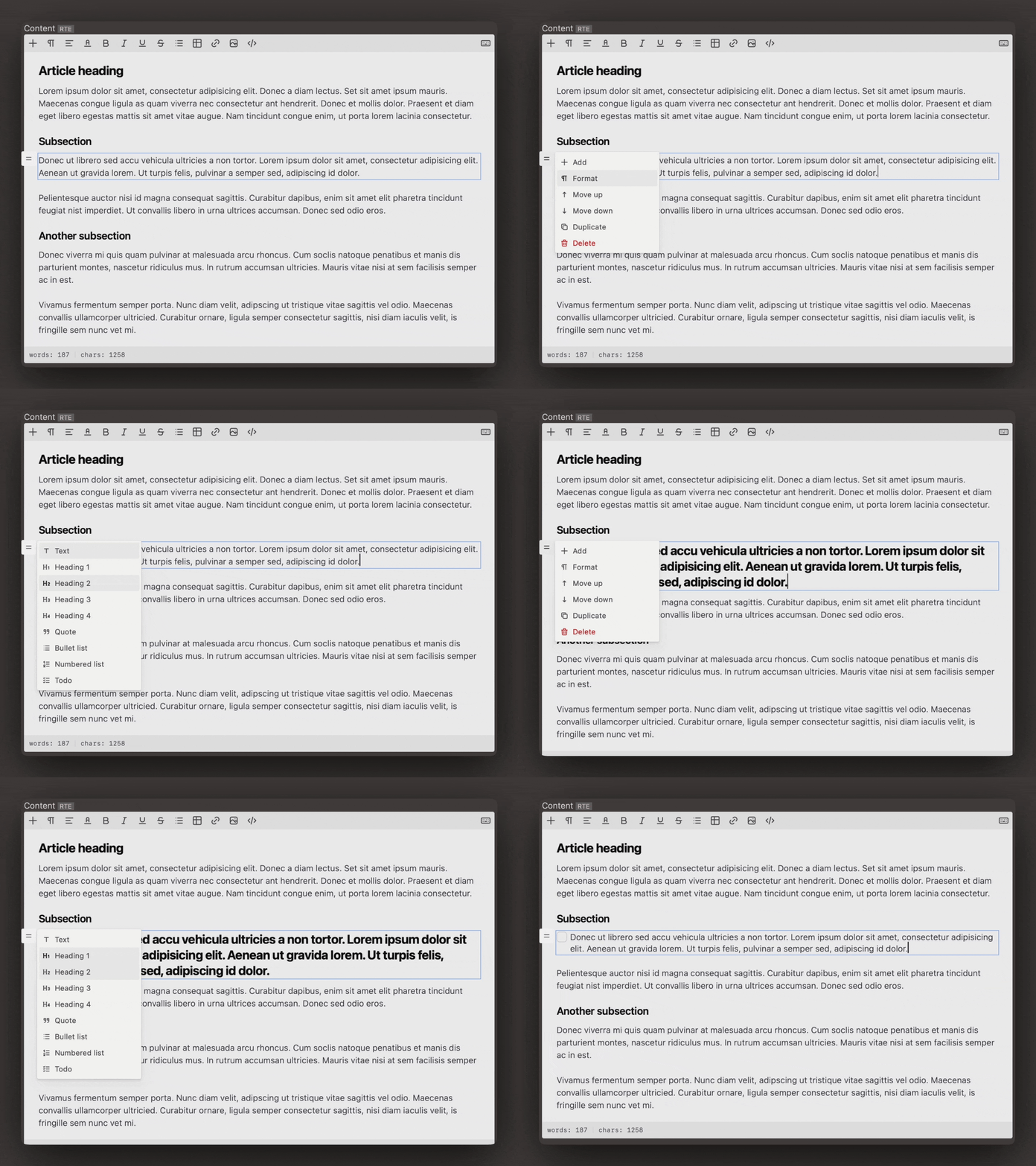
It is possible to change block format between text, heading types (H1, H2, etc), quote, list types (bullet and numbered) and todo.
Text
Text is the default block and will be created automatically when hitting enter.
Heading
The editor has the option to choose heading type from H1 to H4.
Image
An image can be included with an link or by uploading to media.
- Dragable image sizing
- Alt-text
- Caption
- Link: adds a like around the image and makes it function as a navigational element
- Image wrap: None, Left, Center, Right.
- Outset options: None, Left, Center (both), Right

Lists
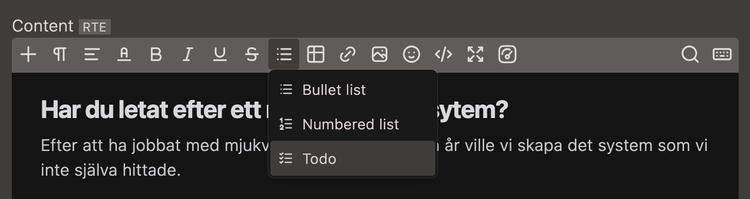
Choose between bullet (unordered), numbered or todo lists.
Embed
Embed is a way to include content in an iframe, commonly a youtube or vimeo video but video conference services such as Digital Samba can be used to create digital sales rooms.
Adding an iframe
Steps in video
- Create page in Pages
- On page press the + in the RTE toolbar and choose Embed.
- Copy code in Digital Samba and paste into the dialog and save page.
- Preview the page.
Considerations: In the video the default page template is used. There are multiple ways to create a more unique experience.
Table
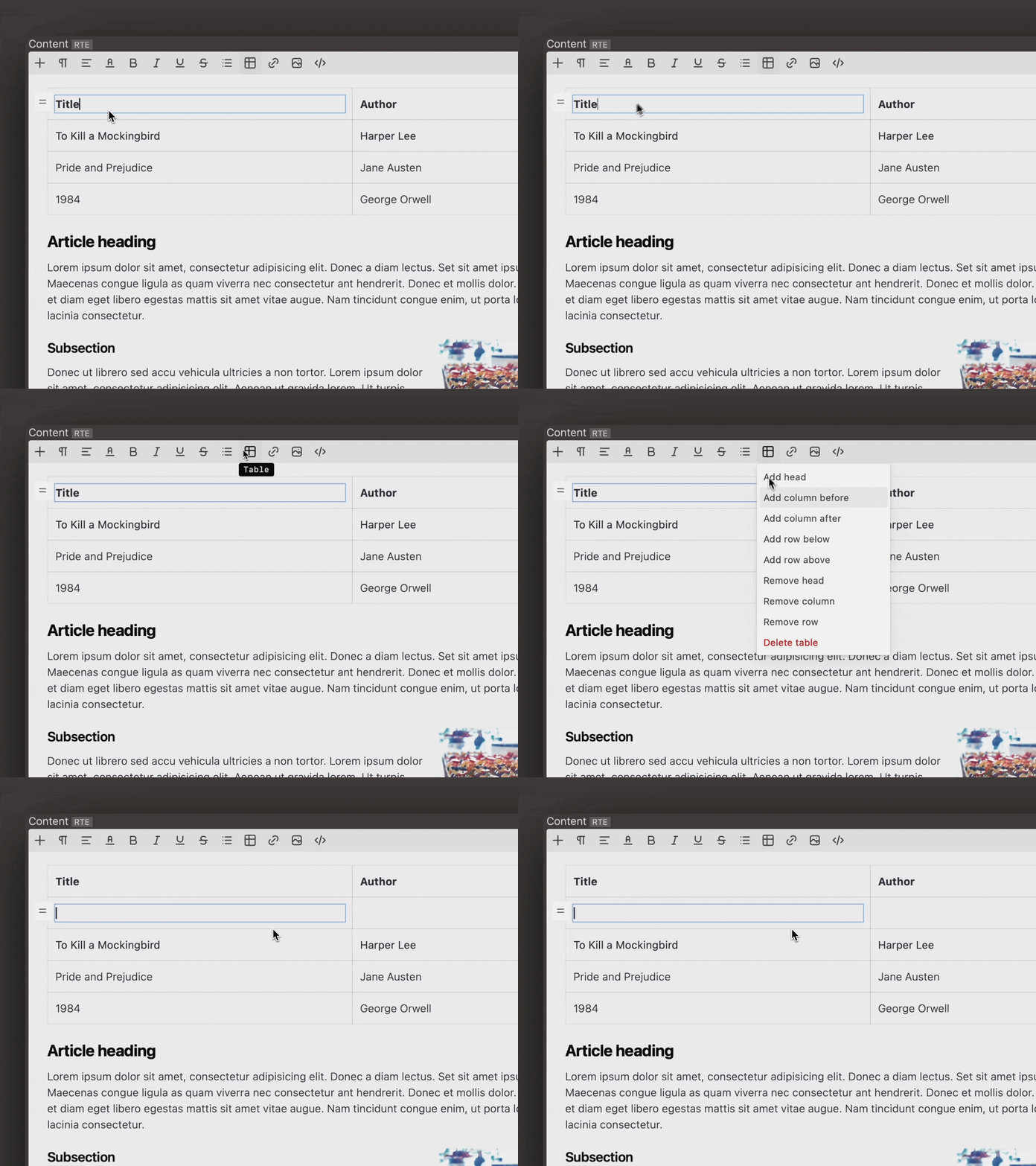
Table-block with commonly needed actions such as adding or removing rows or columns but also with head option.
Quote
The quote block comes with the possibility to add an attribution.
Code snippet
Used for displaying code blocks, wraps the content into <pre> tags.
Layout blocks
Layout
Layout block adds the possibility to include columns for the content.
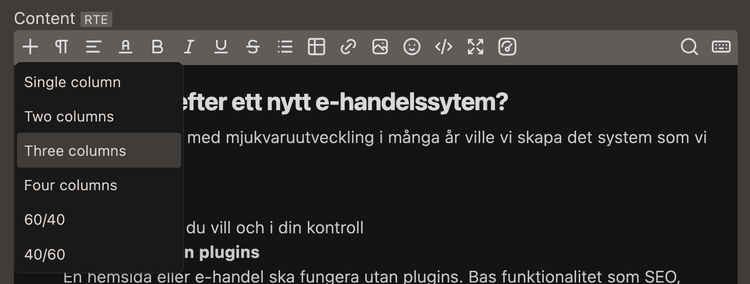
If you are developing your own theme ensure that you include styling for the layouts.
Line
Creates a horisontal line ( <hr> element).
Wrapper
The wrapper option will add the HTML element <div> as a wrapper, This makes it possible group content inside a wrapper, which can be given a classname to follow specific styles.
Text formatting
Inline formatting refers to the application of text-specific styles or formatting directly within the flow of a text, affecting only the selected portion of content without disrupting the surrounding structure. It’s applied to individual words, phrases, or characters rather than blocks of text. Examples of inline formatting include making text bold, italic, or changing its color.
Text color
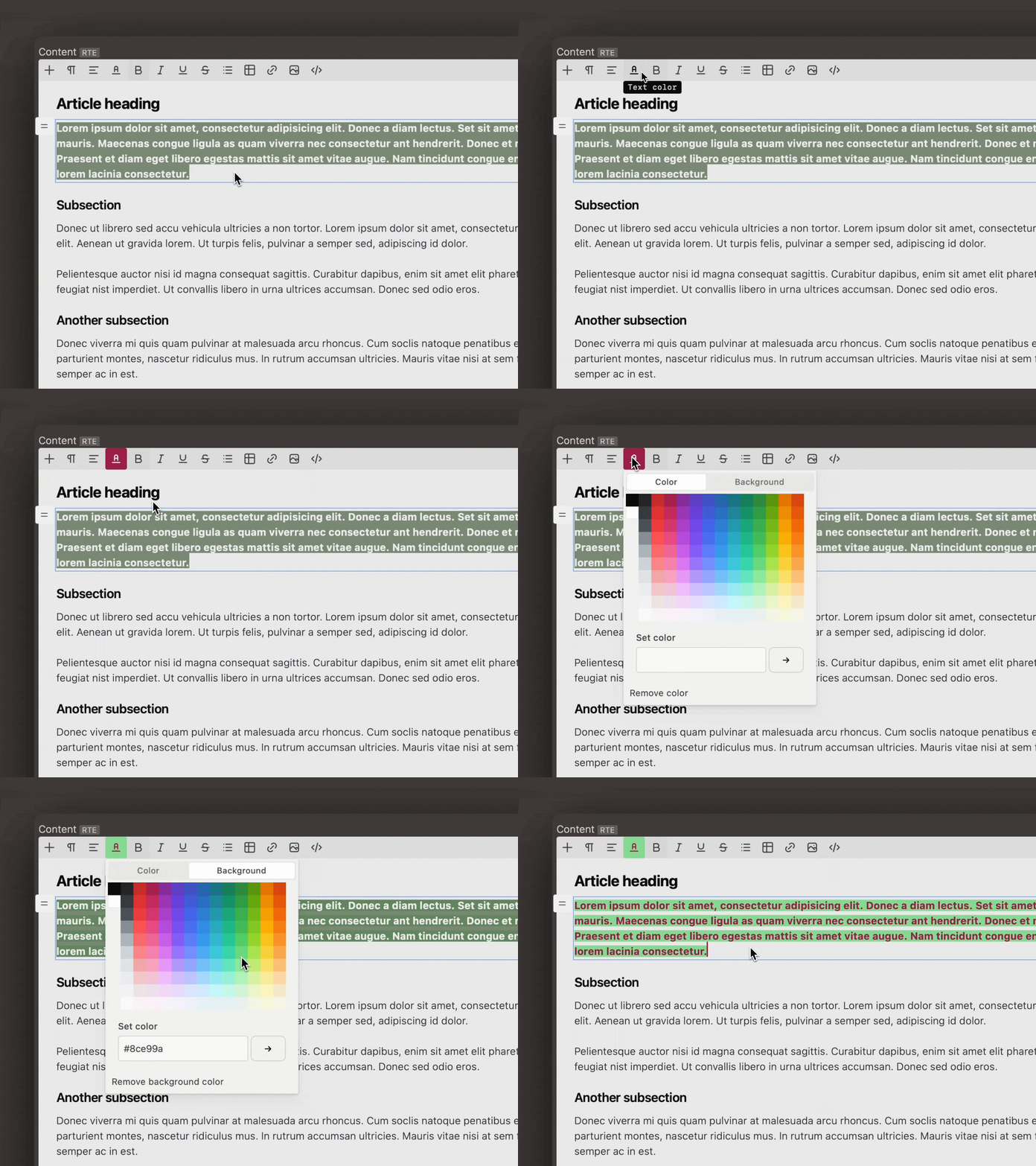
Text can be highlighted with a text and background color.
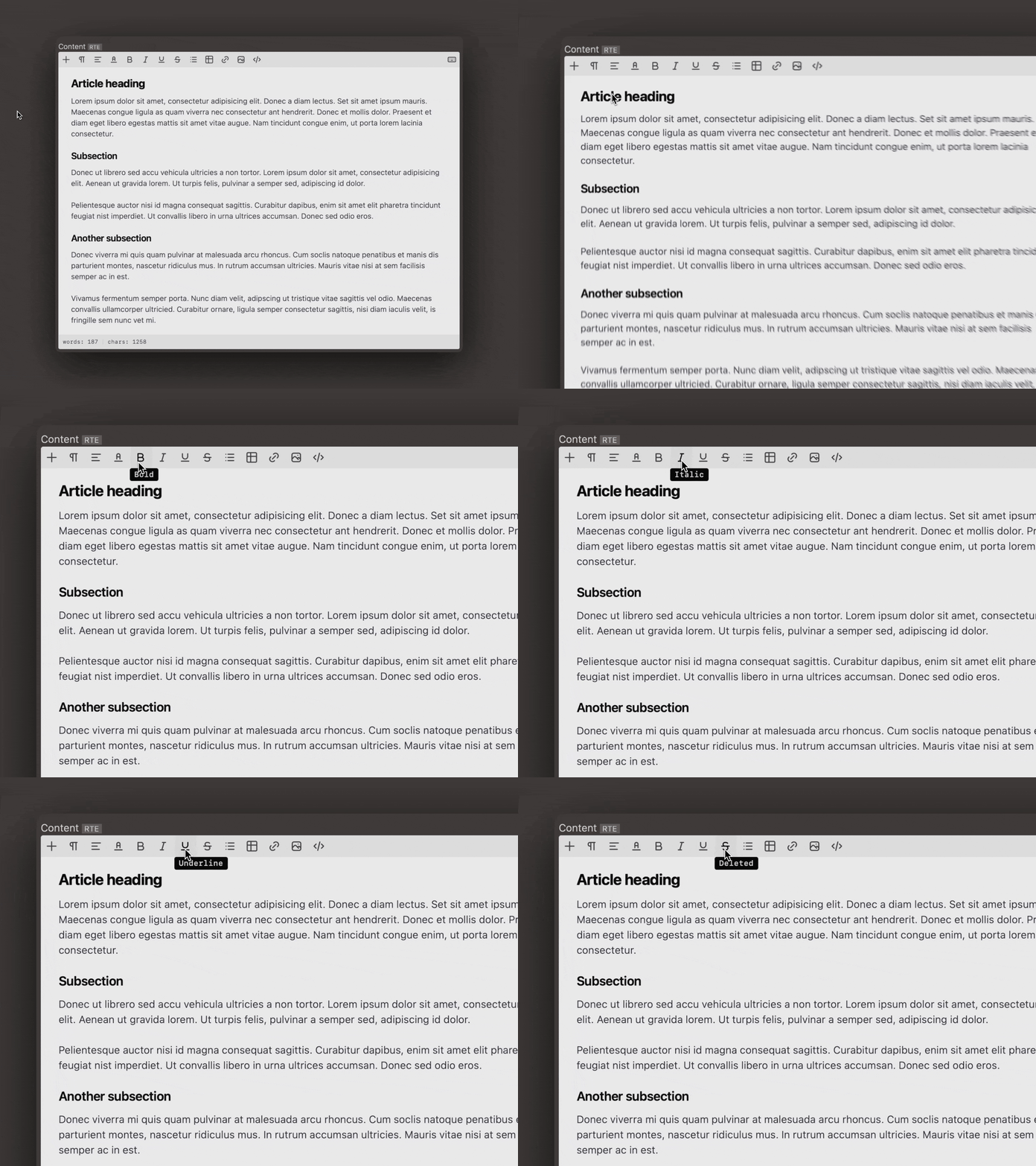
Bold, Italics, Underlined and Deleted
Links
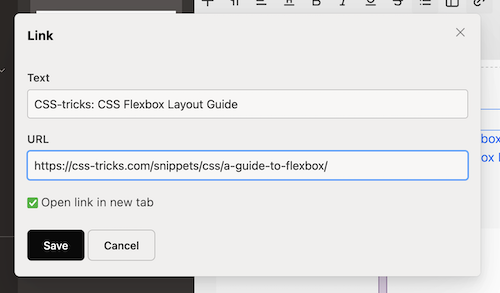
A link is inserted for a part of a text and adding a url. There is also the option to specify if the link should be opened in another tab.
Alignment
The alignment option will align the text to left, center, right or justified. It will affect the whole block and is not strictly an inline text formatting option.
Theme support
The Rich Text Editor will require CSS to be included into the theme for optimal usage.