
Site settings is a place where you control the general information and settings for a site.
When setting up a site, it is good practice to start with editing the Site settings. You access Site settings in admin under the Settings menu in the bottom left.
Site settings is where you find:
| Setting | Description |
|---|---|
| Site status | Site status toggle in settings with open and closed states. |
| Site Id | Site id is the unique identifier of the site, it’s found in the top of the settings. It is used in databases and in some cases also when using the system, for example, in IndexNow submissions. |
| Site information | General information about the site and the organization behind it. |
| SEO meta data | General meta data for the site used for SEO and Open graph cards. |
| Images | Logos, cover image and favicons for consistent visual branding |
| robots.txt | robots.txt file dialog for adding directions to scrapers. |
| Domains | Domain settings for the site |
| IP-geolocation service | Section to add in IP-geolocation service credentials. |
Site status
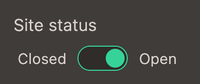
A site is open by default when created, but can be closed in the site settings. A closed site will only show the restricted template and no other pages for visitors. Users with admin sessions can still browse the site, as it would be open. For building a site while keeping visitors away the site status closed can be used, this keeps the site unreachable while displaying a customizable message.
In the closed state, the site will use the layout template named restricted.liquid, but as an admin user, you can still access all the other views while logged into the admin.
The restricted view can be modified in the theme settings or rewritten in the theme editor.
Site information
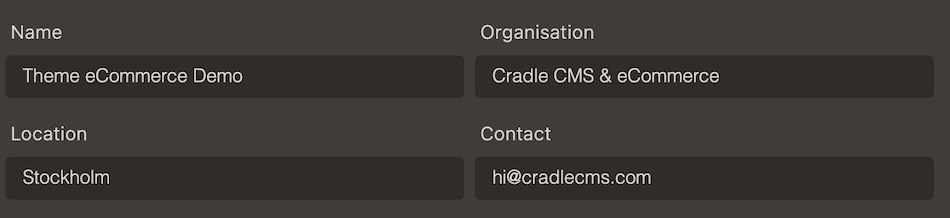
Information about the site and the business/organization behind it.
The fields are reached with liquid to add information for the website in the <head> element of the website, a part of the themes.
| Field | Description | Liquid |
|---|---|---|
| Name | Name of the site, mainly used internally. | {{ site.name }} |
| Organization | The legal entity of the venture, commonly a company name | {{ site.company }} |
| Location | A way to add in locality of the site. | {{ site.location }} |
| Contact | A contact e-mail address to the site, used in blogroll | {{ site.contact }} |
SEO meta data
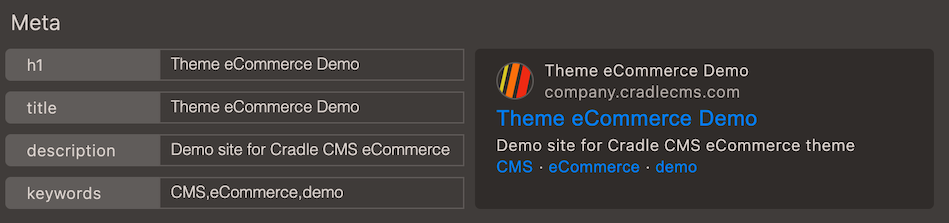
The information is formatted to fit many different purposes; the title together with the favicon is displayed in the browser tab, search engines, AI-agents, as well as other web scrapers use the information to understand what the page is about. And Open Graph meta tags specify the information to social media cards when sharing the site.
| Field | Description | Liquid |
|---|---|---|
| Meta title | Title used for site title in head element meta fields | {{ metaTitle }} |
| Meta description | Site description used in site head element as information for search engines and similar services. | {{ metaDescription }} |
| Keywords | Site keywords used in site head element as information for search engines and similar services. | {{ metaKeywords }} |
Example of site title in head data
<title>{{ site.title }}</title>More information about the site object in the Liquid documentation.
Site images
The site settings is a place to add dedicated images for branding such as logos, favicon and cover image, this ensures consistent visual branding both on-site and whenever the site is shared externally.
| Name | Specification | Description |
|---|---|---|
| Cover image | 1200 px wide and maximum 3-4 Mb large png image |
Used as cover image for the site, reachable on URL |
| Favicon | png and ico format |
Image used as thumbnail in browsers |
| Logos | png format |
Image used as logo on site and in email templates |
Cover image
The cover image is mainly for external purposes and is, for example, used in the website templates for Open Graph Tags meta data used by social media cards. The uploaded image will rescale to smaller sizes, the original file should be at least 1200 px wide and maximum 3-4 Mb large.
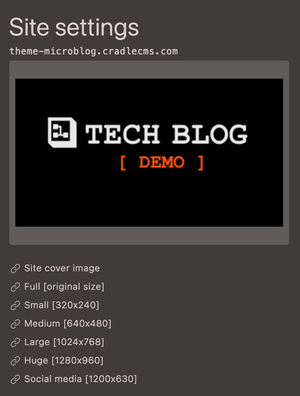
A dedicated place for the cover image ensures that if updated in the site settings page, it is also updated in all places where any of the links are used.
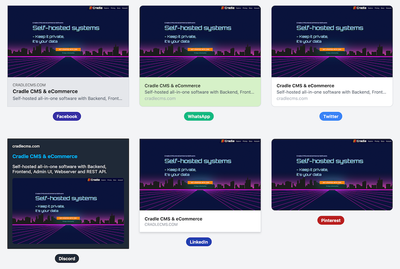
The uploaded image is automatically converted to additional sizes that can be used throughout the website and elsewhere. The additional sizes are specified underneath the image on the site settings page.
| Rescaled cover images | URL path |
|---|---|
| Cover image | /cover.png |
| Full(original size) | /cover-full.png |
| Small[320x240] | /cover-small.png |
| Medium[640x480] | /cover-medium.png |
| Large[1024x768] | /cover-large.png |
| Huge[1280x960] | /cover-huge.png |
| Social media [1200x630] | /cover-social.png |
Favicons
png and ico formats in site settings.
Favicons are images used as a thumbnails in the browser. It is advisable to add a favicon images in both ico and png formats.
| Name | Specification | Description |
|---|---|---|
| favicon.png | png format |
Image used as thumbnail in browsers |
| favicon.ico | ico format |
Image used as thumbnail in browsers |
Favicons can be generated with online tools such as Favicon.io.
Logos
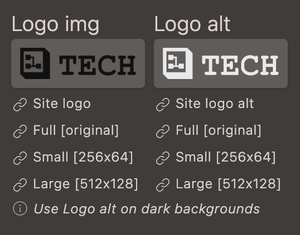
Dark and light logos are uploaded in site settings, with URLs for the different sizes underneath.
Domains
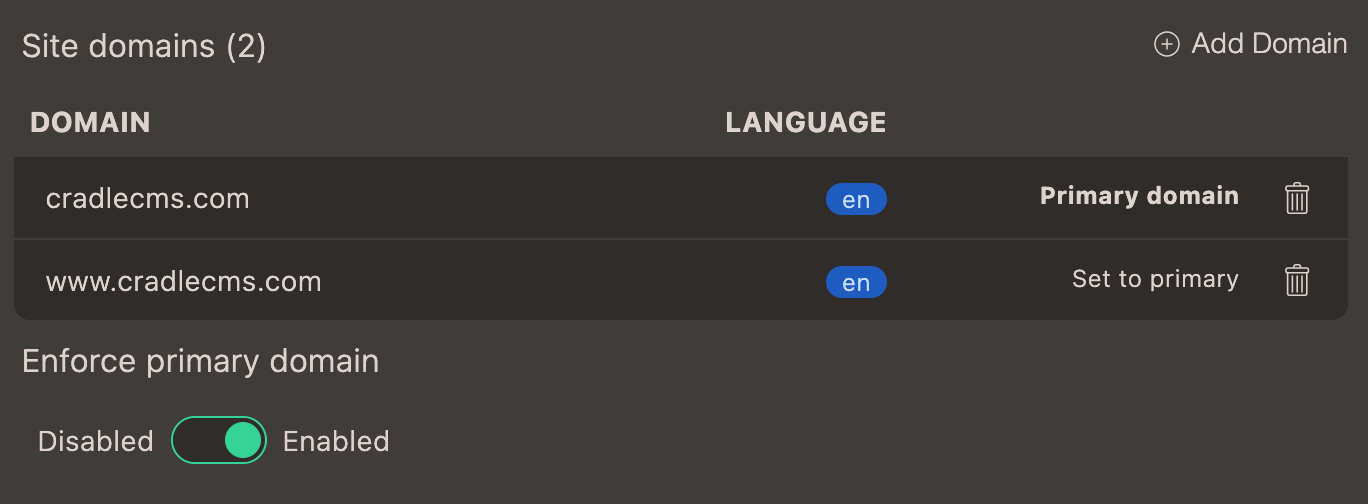
Multiple domains can be added to a site with a language specified for each domain. If enforce primarysettings is enabled, the website traffic will be redirected to the primary domain.
IP geolocation
Credentials to connect to the IP geolocations service databases are added in site settings. The datasets are saved on the server to provide fast access.
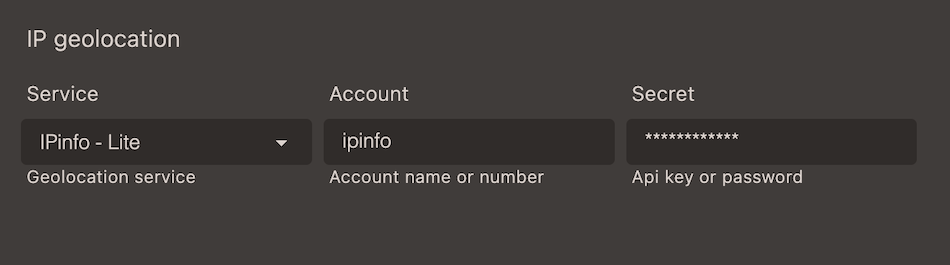
IP geolocation is the process of mapping IP addresses to a physical location. It is used for enhanced user experience, better targeting and site visitor statistics, which is especially important for e-commerce as it is possible to provide the correct checkout experience.
Credentials to connect to the IP geolocations services are added in site settings.
Supported IP Geolocation services
- IPinfo - Lite IPinfo - Lite connection guide
- MaxMind - GeoLite2 MaxMind - GeoLite2 connection guide
- MaxMind - GeoIP
Robots.txt file
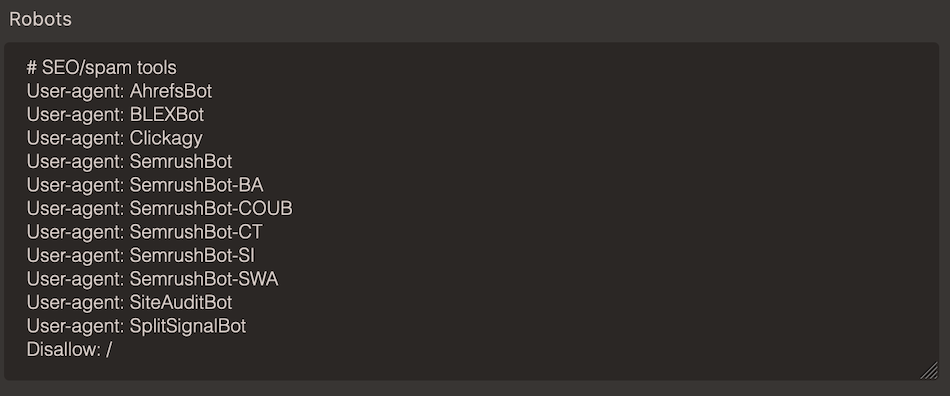
The robots.txt file is used by websites to communicate with web crawlers and search engine robots. It provides instructions about which parts of a website should or should not be accessed or crawled by these automated bots. It can be used to manage crawl budget as it ensures that crawlers focus on important pages rather than wasting resources on unimportant or redundant ones. Not all crawlers follow robots.txt directives; malicious bots probably will ignore them.
Under Site settings, the contents of the robots.txt file can be modified and is published under mydomain.com/robots.txt
Information about the contents in robots.txt files on The Web Robots Pages