
Theme built with Tailwind CSS framwork with component design from daisyUI. The theme contains a production mode (with built CSS) and developer mode setting using the play CDN from Tailwind and daisyUI output files for easy enhancements.
A make script is included in the repository, this is for the build step and creates the final output.css file. For more information checkout the repo on Github.
Colors
The daisyUI color presets are changed in theme settings.
Theme settings are unique to each theme and can be modified
- Index sections
- Page templates
- Blog and article
- 404-not found
- Search page
- Closed site template
Header
Logo, links, search, language switcher, call to action (CTA) button.
Logo
The theme has a setting for using the logo uploaded in theme settings
Links
A link list can be added and will be displayed as a row after the logo or site name.
Search box
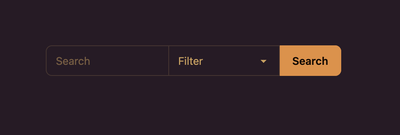
An search box can be used in the header, with the option to show none or use a redirect to the search page.
Language switcher
If more than one language is active on the site the theme shows the language switcher in the header.
Call to action button
A call to action button is setup by connecting a page.
Footer
Color options
The footer color setting can be set base color in three different shades or the alternative - an inverse to the base colors.
About section
The about section is placed to the left and can contain an image, text and social media links.
Link lists
One or several linklists can be added to the footer.

Newsletter sign up
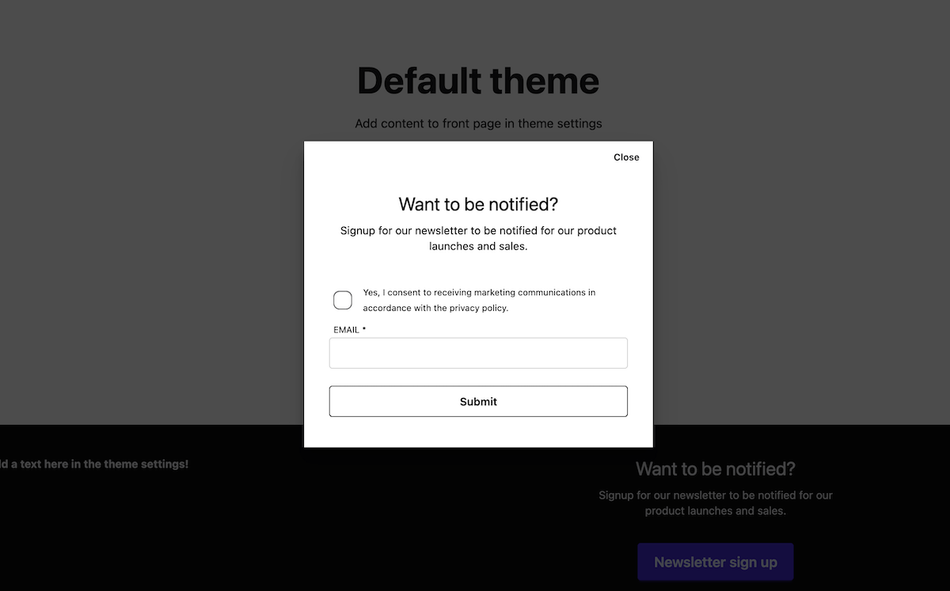
The footer has a function for a newsletter signup dialog or any other type of form.
Forms are created and manged under Messages/Forms in admin.
More about form creation in form guide and in form development guide.
Homepage (index)
The homepage (index page) content added with theme settings
- Top hero section
- Link Grid
- Creae an image Grid
- Page content
- Banner sections
- Blogsection
Hero section
A hero section in the top, background video or image, height setting, title and byline and link support.
Blog section
Add a blog section in the bottom of the index page.
Pages
The theme has four layouts for pages: the default page, contact page, empty body and layout free, the template is chosen in admin on the page.
Template | Description |
page | Default page template |
contact | Page template with form, added in theme settings. |
emptyBody | Used for landingpage content where the information to the head is controlled from the system and main theme |
layoutfree | Completely layoutfree page template for landingpages that includes also the head tag. |
render | Default page template with rendering of liquid syntax. |
More about working and setting up pages in the guide.
The default pages has settings for text alignment and content width. If a page image is added in admin this will be used as a header image.
Contact page
To use the themes contact form on a contact page you will need to add a page using the page template contact and create the contact form in the form builder.
1. Create a contact form
Setup a contact form under Messages/Forms.
Setup in admin, the three form fields are added according to the table.
Required |
Name |
Type |
Value |
Attributes |
Match |
|---|---|---|---|---|---|
Yes |
name |
text |
- |
- |
|
Yes |
- |
||||
- |
subject |
text |
- |
- |
|
Yes |
message |
textarea |
- |
rows=6 placeholder="Brief description of why you are contacting us..." |
- |
- |
legal |
paragraph |
<small>Your personal information will be stored and used to respond to your inquiry, more information in our <a href="/privacy">privacy policy</a>.</small> |
||
Yes |
send |
submit |
send |
class="btn" |
2. Add form in theme settings
Go to theme settings and choose the contact form in "Page" settings
3. Add a page and insert contact template
Add a page (or use exsisting one) and set the page template to "contact".
Empty body
The template "emptybody" will add the content from the page editor in the body-tag. This template is to be used when creating landing pages more freely but still want to benefit from the head data generated by the system.
Guide on Create a landingpage with AI shows the steps
Layout free
The template "layoutfree" will only use the content added in the page editor. This is useful when creating pages used as landing pages that already contains the head-tag
Blogs
Templates for blogs and articles
Blog settings for related articles on article template, tags filtering on blog pages and RSS / atom feeds link display.
Search
Search page template
404 - not found
404 - not found template
Structured data
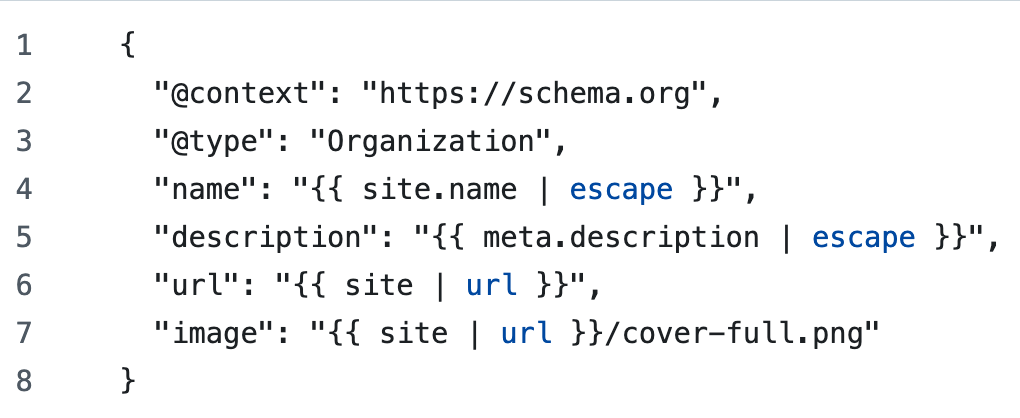
The theme contains structured data for creating websites beautiful to share with the help from open graph tags and readable to search engines with microdata inserted.
Theme development mode
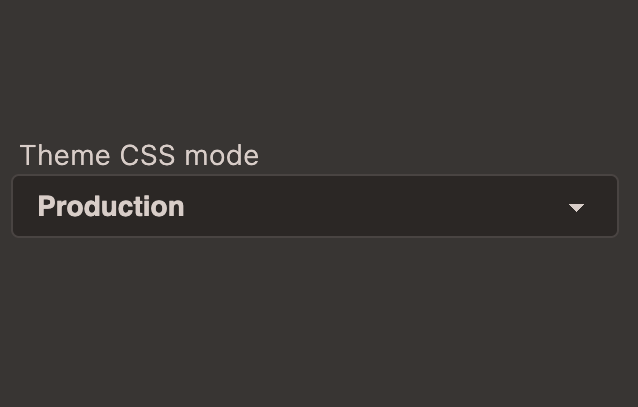
Tailwind CSS framework requires a build step and a way around the, in a serverside rendered CMS like Cradle CMS, is to use the play CDN when developing the theme. To enable the play CDN version there is a Production and Development mode worked into the theme.
Browser compability
The theme is compatible with modern browser versions released since 2024. The useage of CSS layers and HTML dialog elements means that browsers Internet explorer, Opera mini, QQ Browser, Baidu Browser and KaiOS Browser are not fully supported. Overall this means that the theme is compatible with over 95% of users world wide.