
How the website looks and functions is built with HTML, CSS, javascript and Liquid as templating language with the files collected in themes. The themes are found in the main menu to the left under Themes learn more in the theme guide.
There are several premade themes that are customisable with theme settings. Checkout our github for themes and components.
Theme code editor
Each theme can be opened with the theme code editor reach on the theme card under Themes view. The easiest way to modify and develop themes is with the built-in code editor as the liquid code can be executed. When the site is open it is best to work on a copy of the theme and publish when ready.
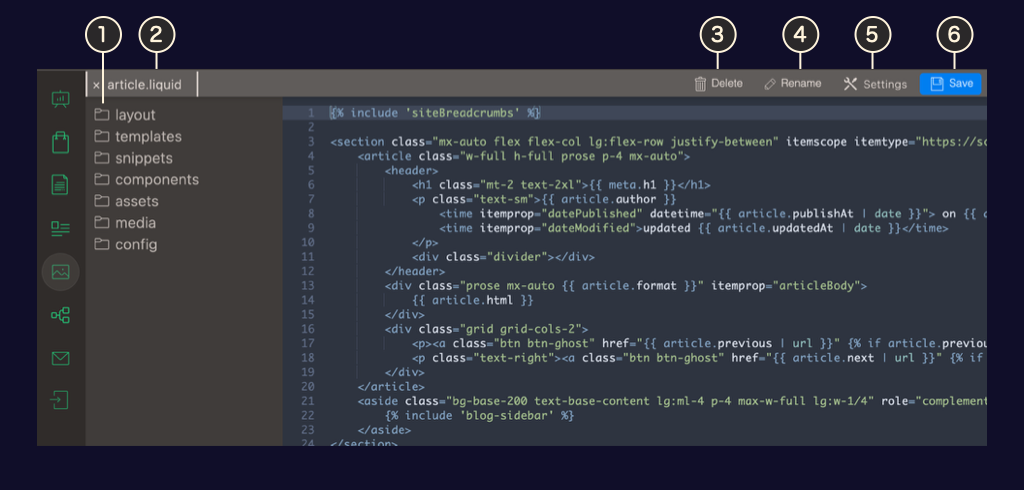
In User settings it is possible to choose the code editor theme and keybindings.
- Theme files and folders Theme folders showing all the theme files
- Open files A list of all open files
- Delete file Deletes the file shown in the editor
- Rename file Renames the file shown in the editor
- Theme settings Navigates to theme settings view with preview of the theme
- Save file Saves the file shown in the editor
Theme updates
Non-published themes with a update source can be updated through admin. With the update function, no files are deleted, settings in the settings_data.json file and all files in the media catalogue are left as they are.
The themes we provide have continious updates for fixes, enhancements and to reflect feature updates on the software. As Cradle CMS & eCommerce is a self-hosted solution and there is theme code freedom the theme updates are in site owners control.
Steps for updating the theme
- Duplicate the theme
- Press Update
- Check the site with preview of the updated theme
- Publish the theme
Add themes
Themes can be added by uploading a zip-file or installed from an URL.
Upload theme zip-file
In Themes admin view use the Import theme button located under the Unpublished themes heading to upload a zip-file stored locally in the computer. The uploaded theme will be added to the list of unpublished themes to the right.
Install theme from URL
Any URL pointing to a zip file containing a template, such as an URL from github, can be used for installing a new theme.
In the top right corder of the Themes view 1) press Install theme, 2) add the URL together with specifying a name and a description and 3) press install.
The theme will appear first among the Unpublished themes.
Theme export
All themes can be exported from the Themes page in a zip-file.
The exported zip-file will include all files viewable in the code editor, as well as the media folder, where all the uploaded media is stored.
Theme structure
A theme consists of six folders: layout, templates, snippets, components, assets and config. All files ending with .liquid can contain code evaluated server-side.
More about the implementation of Liquid templating with Cradle CMS.
Layout files
The layout folder will contain the main structure files for a website. Commonly two files are present here:
theme.liquid: default file when site is open.restricted.liquid: default file when the site is closed.
Default layout
For open sites theme.liquid is the default layout file for the rendering of all pages for a website.
Example of barebones content for theme.liquid
<!DOCTYPE html>
<html>
<head>
<meta charset="utf-8" />
<title>{{ site.name }}{% if meta.title != blank and meta.title != site.name %} | {{meta.title}}{% endif %}</title>
<meta name="description" content="{{ metaDescription | escape }}" />
<meta name="keywords" content="{{ metaKeywords | escape }}" />
<link rel="canonical" href="{{ canonicalUrl }}" />
{% if template == 'index' %}
<script type="application/ld+json">
{% include 'structured-data' %}
</script>
{% endif %}
{% include 'open-graph-tags' %}
<meta name="viewport" content="width=device-width, initial-scale=1" />
<link rel="stylesheet" type="text/css" href="{{ 'site.css.liquid' | asset_url }}"
<link rel="stylesheet" type="text/css" href="{{ 'editor-styles.css' | asset_url }}"
</head>
<body id="{{ meta.title | handle }}" class="template-{{ template | replace: '.', ' ' | split: ' ' | first | handle }}">
<header>
<h1>{{ site.name }}</h1>
</header>
<main>
{{ contentForLayout }}
</main>
<footer>
<p>Copyright © - {{ site.name }} - All rights reserved</p>
</footer>
</body>
</html>
Using alternative layout
If a template (for example the product.liquid template file) has a specification {% layout 'alternative' %} for an alternative layout, in this case referring to a layout file named alternative.liquid.
Render without layout
It is possible to render a template without the surrounding template.
{% layout 'none' %}
{{ contentForLayout }}
page.layoutfree.liquid) without layout that can be used stand-alone pagesFigure: Example of a page template without layout that can be used on stand-alone pages where <html> tags and content in the <head> is also included in the page editor.
{% layout 'none' %}
{{ product | json }}
Content for header
in the layout file(s) add contentForHeader
<html>
<head>
....
{{ contentForHeader }}
</head>
...
it’s useful if you want to load scripts or stylesheets from templates.
{%- header %}
{{ 'mystyle.css' | stylesheet_tag }}
{%- endheader %}
If preload on tags are used this is where the links are added.
Template files
The templates folder contains all the template files for the different context in the system and for a web site: index, page, blog, blogs list, article, 404 and search.
| Name | Filename | Description |
|---|---|---|
| 404 | 404.liquid |
Template for 404-page. |
| Article | article.liquid |
Default template for articles. |
| Blog | blog.liquid |
Default template for the blog page. |
| Blogs list | blogs-list.liquid |
Template for page, usually found on /blogs/, that lists all the blogs. |
| Index | index.liquid |
Index page template. |
| Page | page.liquid |
Default page template. |
| Search | search.liquid |
Search page template. |
It is common that a theme contains several templates for the same type of object, for example themes usually contain a page.contact.liquid template that adds a contact form on the pages where the contact template is chosen.
eCommerce files
For eCommerce the templates folder includes templates for collections, products as well as for customer accounts and checkout process.
| Name | Filename | Description |
|---|---|---|
| Checkout | checkout/checkout.liquid |
Template for checkout. |
| Confirmation | checkout/confirmation.liquid |
Confirmation page after placed order. |
| Customer account | customer/account.liquid |
Customer account page. |
| Customer addresses | customer/addresses.liquid |
Customer addresses page. |
| Customer invite | customer/invite.liquid |
Customer account invite page. |
| Customer login | customer/login.liquid |
Customer account login page. |
| Order | customer/order.liquid |
Placed order view in customer account. |
| Customer register | customer/register.liquid |
Customer account register page, note that self-registration of accounts needs to be enabled in shop settings. |
| Customer reset password | customer/reset_password.liquid |
Customer reset password template. |
| Cart | cart.liquid |
Cart template |
| Collection | collection.liquid |
Default collection template. |
| Collection list | collections-list.liquid |
Template for page gathering all collections, usually on route /collections/ |
| Product | product.liquid |
Default product template. |
Snippets
Snippets is a folder where code snippets can be stored. Snippets would be used for breaking out parts of the code for reoccurring parts or to make a main layout or template file easier to read.

Article card code is a typical recurring snippet, articleCard.liquid that can be used both in a blog section on the index page and on the main blog page. Whereas breaking out code for the header, header.liquid, and footer, footer.liquid, would give an example of code that can be broken out for decreasing complexity of the main layout file theme.liquid. Including an svg in the code enables CSS styling and by breaking out the code for the svg image in a snippet-file is another example of how to create a more structured code base and improve readability.
Components
The components folder holds the code for web components and is similar to snippets but intended to be rendered client side.
Assets
Assets is a place to add CSS- and JS-files.
Media
All images uploaded in theme settings is saved in a media catalogue, this is not displayed in the code editor but will be exported.
Config
Themes comes with theme settings, where options for the theme is built in. These options can handle colors settings, uploading of logos and other website content, as well as, the structure of the site.
In the config folder the theme settings configuration file will determine the options in the settings and the data inserted is stored here as well.
The customizable file settings.json will render the theme settings view.