
In this guide, we’ll describe how you can set up an order withdrawal process in accordance with the EU directive on financial services contracts concluded at a distance.
The law mandates that all EU member states shall ensure that the consumer has a period of 14 calendar days to withdraw from a contract “without penalty and without giving any reason”. The period starts from when the consumer has received the contractual terms and conditions. Note that a consumer is a person, not a business, so B2B sales fall under the merchant’s contractual terms and conditions.
Furthermore, the order withdrawal process must be clearly visible and implemented as a two-step mechanism with an initiation and a confirmation step.
We can implement the initiation step using an order-withdrawal form, which in turn sends an email receipt containing a link to confirm the withdrawal.
Withdrawal form
Let’s start by creating the order-withdrawal form. Under Admin -> Messages -> Forms click the Create form button and enter order-withdrawal as the handle, then add fields as illustrated below.
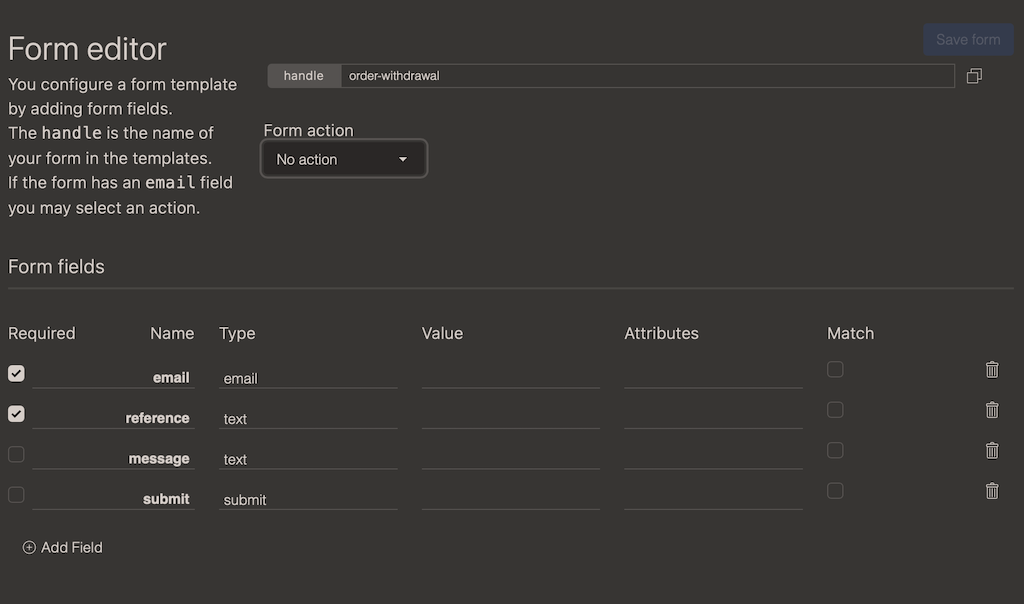
We have two required fields: customer email and order reference. You can however substitute these with some alternate fields.
- customer fields can be
email,usernameorcustomerId - order fields can be
referenceororderId
Since this is a form you may add additional fields such as message and feedback in case you want to gather additional feedback. No links or tags are allowed in the text fields.
With this form in place, you can insert the form wherever you like or link to the built in order/withdrawal template.
The law also mandates that you must have a link to this form or “function”, preferably in the footer so that it’s clearly visible on all pages.
Form usage
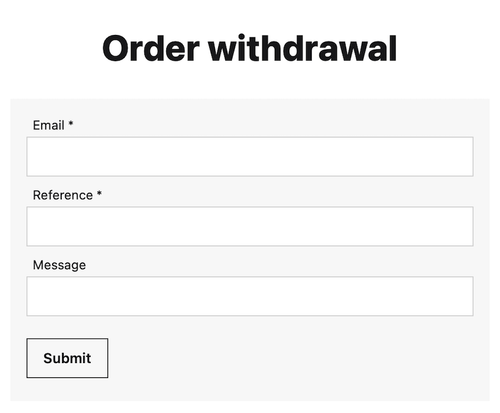
Enter the following snippet where you want to include the withdrawal form.
{% form 'order-withdrawal' %}{% endform %}
Withdrawal template
Incase your theme doesn’t already have a withdrawal template you can create one yourself. Using the theme editor, create a withdrawal.liquid file under either templates/order or templates/checkout.
{% assign pageTitle = 'Order withdrawal' | t %}
{% title pageTitle %}
<section>
    <h1>{{pageTitle}}</h1>
    {% if withdrawal.error != empty %}
			<p><strong>{{'Request failed' | t}}</strong> {{withdrawal.error | t }}</p>
    {% elseif withdrawal != empty %}
			<p>{{"Order withdrawal request has been received" | t}}</p>
			<p>{{"Consult our"| t}} <a href="{{'page/terms' | url}}">{{"terms and conditions" |t}}</a> {{"regarding refunds and shipment returns" | t}}.</p>
    {% else %}
       {% form 'order-withdrawal' %}{% endform %}
    {% endif %}
</section>
The withdrawal template handles both initiating and commiting a withdrawal.
- when a withdrawal is commited, it confirms the receival.
- if there is an
withdrawal.errorit shows the error message. - or it shows the order-withdrawal form.
Order admin
When an order withdrawal has been received the order status is set to withdraw. This shows up on the order so that admin can commence with refunding payment and eventually start a return shipment process.

When all that is done you can close or cancel the order. You are allowed to charge for handling and shipment costs, make sure you have explained that in your terms and conditions.
Withdrawal email
When the customer has submitted a withdrawal request an email is sent using the Order Withdrawal email template which you find under Admin -> Email -> Settings -> Order Withdrawal.
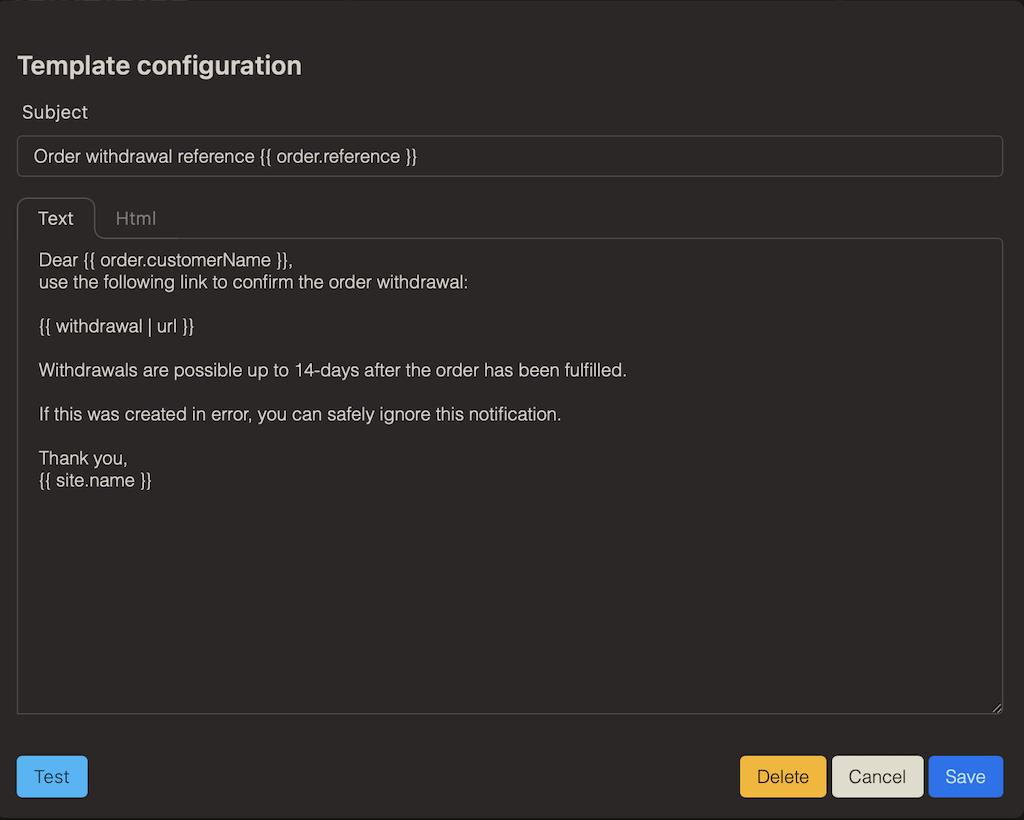
You can edit the template and add additional text including links to your terms and conditions. This template has access to the order object so you can list the affected order items.
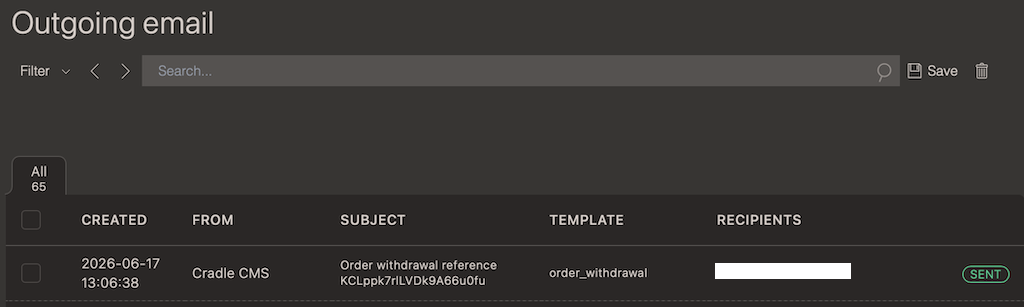
If you go to the outgoing email in the admin you can see if the withdrawal email actually was sent without errors.
Customer account
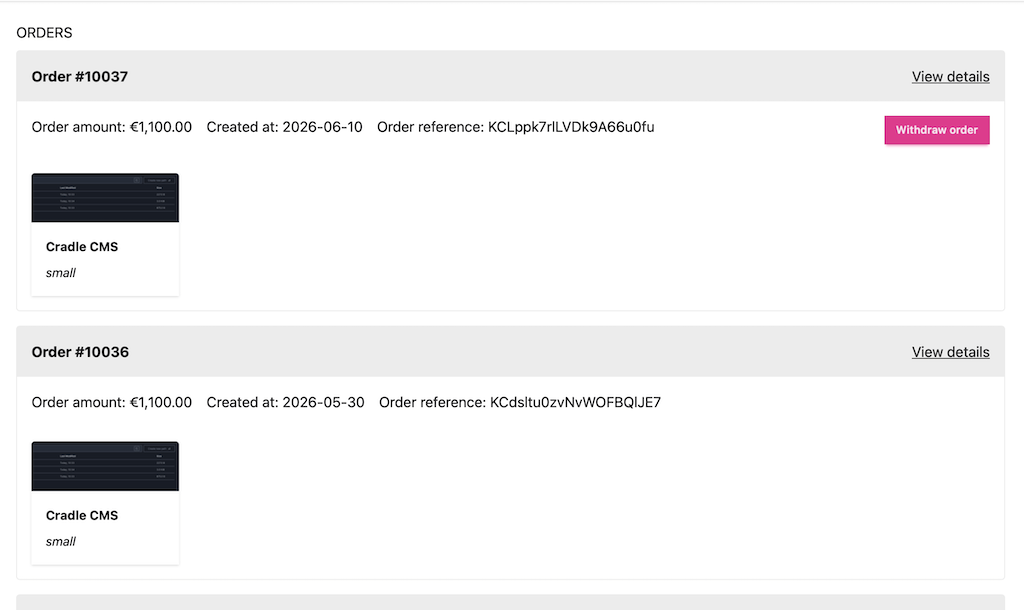
Finally you can add a withdrawal button on each withdrawable order in the customer account page.
When listing the orders you can check if order.withdrawable is set and render the withdrawal button.
{% for order in customer.orders %}
   ...
   {% if order.withdrawable %}
	 <a href="{{'order/withdraw' | url:order.reference }}">Withdraw order</a>
	 {% endif %}
	 ...
{% endfor %}
Clicking on the link commits the withdrawal immediately, without going through the form, but we then loose the paper trail.
Instead we can simply link to the withdrawal template directly, but the customer now has to enter the order reference and email which is a bit unnecessary since we have them in the order listing.
A perhaps better UX is to use a script that fills in and sends the form upon clicking the withdrawal button. It should also alert the customer to check the email containing the confirmation link.
{% for order in customer.orders %}
   ...
   {% if order.withdrawable %}
	 <button onclick="withdrawOrder('{{order.reference}}','{{order.customerEmail}}')">Withdraw order</button>
	 {% endif %}
	 ...
{% endfor %}
<script>
     async function withdrawOrder(reference, email) {
        const response = await fetch("/forms/order-withdrawal", {
            method: "POST",
            headers: {
                "Content-Type": "application/json",
            },
            body: JSON.stringify({ reference, email }),
        });

        if (!response.ok) {
            alert("{{'withdrawal failed' | t}}");
            console.error(response.status);
        } else {
            alert("{{'withdrawal requested, check your email!' | t}}")
        }
    }
</script>
If you are using
alpinejsyou can replaceonclickwith@clickand it does the same thing.